How to Make Your Old Devices Run Like New in 2026
1 May 2026
Look, I get it. You're staring at that laptop from 2019, the one that takes a solid three minutes just to open a browser tab. Your phone feels like it's running on molasses, and your tablet has become a glorified paperweight. You've been told to just buy new stuff every two years, because that's what the tech giants want, right? But here's the thing: 2026 is not the year to throw money at planned obsolescence. It's the year to fight back.
I'm not here to sell you a new device. I'm here to show you how to resurrect the ones you already own. We're talking about real, tangible speed boosts, not placebo fixes. And no, I won't tell you to "just restart it" like it's 2005. We're going deep. Grab your old machine, dust it off, and let's get sassy.
Why Your Device Got Slow (And It's Not Your Fault)
First, let's call out the elephant in the room: software bloat. Every update, every app, every "optimization" your operating system pushes is designed to make your old hardware feel ancient. It's not a bug; it's a feature. Companies want you to feel like your device is a dinosaur so you'll buy a new one. But here's the secret: your hardware is probably fine. The CPU from five years ago can still handle most tasks if you stop letting the software eat it alive.Think of it like this: your device is a sports car, but someone filled the gas tank with sludge. The engine is good. The tires are good. But that sludge? It's all the background processes, unnecessary services, and bloated apps you never touch. In 2026, the fix isn't a new car; it's a fuel system flush.
The 2026 Playbook: Strip It Down Before You Speed It Up
1. The Nuclear Option: Fresh Install Your OS
I know, I know. You have files everywhere. You have bookmarks you'll never look at again. You have that one app you use once a year. But let me ask you: when was the last time you did a clean install of your operating system? If you can't remember, it's time.In 2026, both Windows and macOS have gotten better at preserving your personal files during a reset, but I'm telling you to go full scorched earth. Back up your photos, documents, and that one weird meme folder to an external drive or the cloud. Then, wipe the system completely. Reinstall the OS from scratch.
Why? Because over years, your system accumulates digital junk. Corrupted registry entries (on Windows), orphaned cache files, and driver conflicts that stack up like unpaid parking tickets. A fresh install is like a deep tissue massage for your machine. It doesn't just speed things up; it gives your device a new personality. You'll be shocked at how snappy a 2017 laptop feels with a clean OS and nothing else.
2. The SSD Swap: Your Device's Fountain of Youth
If you're still running a mechanical hard drive (HDD), I'm going to be blunt: you're driving a horse and buggy on a highway. The single biggest performance upgrade you can make in 2026 is swapping that old spinning disk for a solid-state drive (SSD). Yes, even if your device is from 2014.SSDs are dirt cheap now. You can get a decent 500GB SSD for less than the cost of a dinner out. And the difference? It's not subtle. It's like going from dial-up to fiber optic. Your boot time drops from two minutes to fifteen seconds. Apps open instantly. Your device stops sounding like a jet engine every time you open a folder.
Most laptops and desktops from the last decade have a standard SATA port for drives. If you're feeling fancy, grab an NVMe SSD if your motherboard supports it (check the manual, you nerd). The installation is easy: unscrew the back, swap the drive, install the OS. If you're scared, watch a YouTube tutorial. You can do this. I believe in you.
3. RAM: The Overlooked Hero
Here's a hard truth: in 2026, 8GB of RAM is the absolute bare minimum. If your device has 4GB, you're not running anything. You're limping. RAM is what lets your device juggle multiple tasks without breaking a sweat. When it runs out, your system starts using the hard drive as fake memory, and that's like asking a turtle to carry your groceries.Check your device's specs. If you can upgrade the RAM, do it. Most older laptops have accessible slots. Pop in a couple of 8GB sticks (or 16GB if you're feeling spicy). The cost is minimal, and the performance jump is massive. Your browser tabs will stop screaming at each other. Your video editing software will actually render without crashing.
If your device has soldered RAM (looking at you, certain ultrabooks), you're stuck. But don't cry yet. There's still hope. You just need to be ruthless about what you run.
4. The Bloatware Purge: Hunt and Destroy
Every new device comes with pre-installed garbage. Trial versions of antivirus software you'll never use. A "productivity suite" that's actually a spyware-laden ad machine. A "game center" that's just a portal to buy more games. In 2026, these programs have gotten sneakier. They hide in your system tray, eat your CPU cycles, and call home to their mothership.You need to go on a purge. On Windows, open the Settings app, go to Apps, and sort by "Size." Uninstall everything you don't recognize or use. Then, use a tool like BCUninstaller (it's free and open-source) to find residual files and registry entries left behind. On macOS, drag apps from the Applications folder to the Trash, then use AppCleaner to nuke the leftovers.
But don't stop there. Disable startup programs. On Windows, open Task Manager, go to the Startup tab, and disable everything except your antivirus and maybe your keyboard driver. On macOS, go to System Settings > General > Login Items. Remove anything that doesn't need to be there. Your device will boot faster and stay faster.
5. The Browser Tamer: Stop Letting Chrome Eat Your Soul
Let's be real: your browser is probably the biggest resource hog on your device. In 2026, Chrome is still a memory vampire. But you don't have to switch to a bare-bones browser to get speed. You just need to manage it.First, audit your extensions. Do you really need that "cute cat cursor" extension? No. Remove it. Extensions run in the background and consume RAM even when you're not using them. Keep only the essentials: an ad blocker (like uBlock Origin), a password manager, and maybe a grammar checker. That's it.
Second, enable hardware acceleration. This offloads some processing to your GPU, which is usually idle. Go to your browser settings, find "System," and toggle on "Use hardware acceleration when available." You'll notice smoother scrolling and faster page loads.
Third, use a tab suspender. Extensions like The Great Suspender (or its modern alternatives) put inactive tabs to sleep, freeing up RAM. You can still click on them to wake them up. It's like putting your tabs in a coma until you need them. Your device will thank you.
The 2026 Software Secrets They Don't Want You to Know
6. Debloat Your OS Like a Pro
Windows 11 and macOS Sonoma (and their 2026 updates) are packed with features you'll never use. Widgets? Turn them off. Animations? Disable them. Transparency effects? They look pretty but eat GPU resources. In 2026, you can use tools like O&O ShutUp10 (for Windows) or TinkerTool (for macOS) to disable these visual fluff without breaking your system.On Windows, you can also disable "Startup Boost" for apps, turn off "Tips and Suggestions," and stop Windows from automatically downloading updates that bloat your storage. On macOS, turn off "Siri Suggestions" and disable "Automatic Downloads" in the App Store settings. Every little bit of freed-up CPU and RAM adds up.
7. The Cloud Is Your Friend (But Only Sometimes)
Here's a controversial take: stop storing everything locally. Your old device's storage is limited, and a full drive is a slow drive. Move your photos to Google Photos or iCloud. Move your documents to OneDrive or Dropbox. Keep only the apps and files you use daily on your device.But here's the catch: don't let cloud sync apps run wild. They can peg your CPU while uploading and downloading. Schedule syncs for when you're not using the device. On Windows, you can pause OneDrive sync. On macOS, you can set iCloud to "Optimize Mac Storage," which keeps smaller versions of files locally and downloads the full versions on demand. Your drive stays lean, and your device stays fast.
8. Thermal Throttling: The Silent Killer
Your old device might be slow because it's literally cooking itself. Dust builds up in the fans and heat sinks over years. When the CPU gets too hot, it slows itself down to avoid damage. This is called thermal throttling, and it's a performance killer.In 2026, fixing this is easier than ever. Open your device (if you're comfortable), and use a can of compressed air to blow out the dust. Focus on the fan blades and the vents. If you're feeling brave, replace the thermal paste on the CPU. It costs five bucks and can drop your temperatures by 10-15 degrees Celsius. Your device will run faster and quieter.
Don't want to open it? Use a cooling pad. It's not as effective, but it helps. Also, stop using your laptop on a pillow or blanket. That's suffocating the vents. Put it on a hard surface. Your laptop needs to breathe.
The "Don't Buy New" Philosophy of 2026
9. Linux: The Last Resort That Works
If you've tried everything and your Windows or macOS device still feels sluggish, consider Linux. I know, I know. It sounds scary. But in 2026, Linux distributions like Ubuntu, Linux Mint, and Zorin OS are incredibly user-friendly. They look modern, run on ancient hardware, and don't spy on you.Installing Linux is like giving your device a second life. It's lightweight, secure, and free. You can dual-boot it alongside your current OS to test it out. Once you see how fast a 10-year-old laptop runs with Linux, you'll never look at Windows the same way again. Just be prepared to learn a few new things. It's worth it.
10. The Battery Fix: Don't Let It Die
Your old device might feel slow because the battery is failing. In 2026, many laptops and phones throttle performance when the battery can't deliver enough power. Check your battery health. On Windows, run a battery report. On macOS, check System Information. If your battery is below 80% capacity, replace it.A new battery doesn't just give you more runtime; it restores peak performance. Your device will stop struggling to balance power between the CPU and the dying battery. It's a cheap fix that makes a huge difference.
The Final Word: You Don't Need to Upgrade
Here's the truth: in 2026, most people don't need a new device. They need to clean up the one they have. The tech industry wants you to believe that your old hardware is obsolete, but it's not. Your 2018 laptop can still edit photos, stream video, and handle daily tasks with ease. It just needs a little tough love.So, before you drop a thousand bucks on a new machine, try these steps. Do the fresh install. Swap the drive. Upgrade the RAM. Purge the bloatware. Clean the dust. Your device will run like new, and you'll save money and reduce e-waste. That's a win-win.
And if someone tells you that your old device is "too old" for 2026? Smile, nod, and then show them how fast it boots. They'll be jealous.
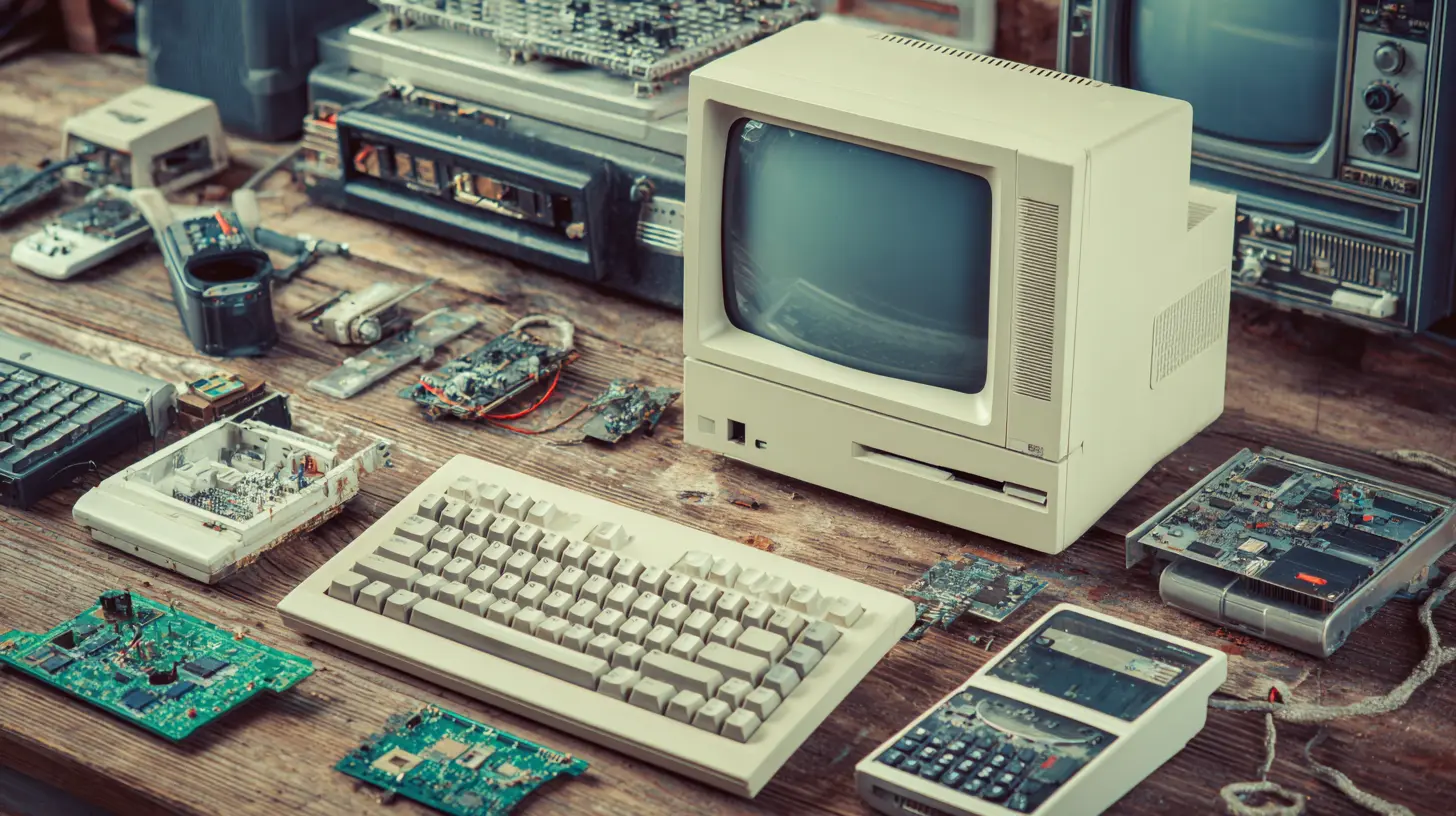
all images in this post were generated using AI tools
Category:
Technology GuidesAuthor:

Adeline Taylor
Discussion
rate this article
2 comments
Kova Peterson
Great tips in this article! It's amazing how simple tweaks and updates can breathe new life into older devices. Embracing software updates and optimizing storage truly makes a difference. Thanks for sharing these insights!
May 27, 2026 at 4:33 AM
Adeline Taylor
Thanks for the feedback! I'm glad you found the tips helpful. Simple changes can really make a difference.
Kimberly Adams
It's impressive to see strategies for reviving old devices. Focusing on software optimization and hardware upgrades can significantly extend their lifespan. As technology evolves, maintaining older devices not only saves money but also reduces environmental waste, promoting a more sustainable approach in our tech-driven world.
May 20, 2026 at 4:00 AM
Adeline Taylor
Thanks for your thoughts! Reviving old devices really does combine sustainability and cost-effectiveness. It's great to see more people exploring these options.