How to Use Docker for Streamlined Development Environments
3 July 2026
So, you're tired of the classic "It works on my machine!" nightmare, right? You’re not alone. Every developer, at some point, has pulled their hair out trying to get an app to run the same way across different systems. Enter Docker — your friendly containerization tool that just might save your sanity.
In this guide, we’re going to unravel the mystery of how to use Docker for streamlined development environments. Stick with me, and by the end of this read, you won’t just grasp the "how" — you'll be excited to set up your own Dockerized workflow, like, yesterday.
? Wait, What Exactly is Docker?
Imagine you're packing for a trip. Wouldn't it be great to just throw your entire room — your bed, wardrobe, desk, snacks — into a magical suitcase that works perfectly wherever you go? That’s what Docker does for your applications.Docker is a tool that lets you package an app along with everything it needs — think system libraries, dependencies, configurations — into a single container. This container runs the same way on any machine, no matter what OS or setup it's on.
In plain terms: it’s like shipping your app with its own mini, dedicated computer.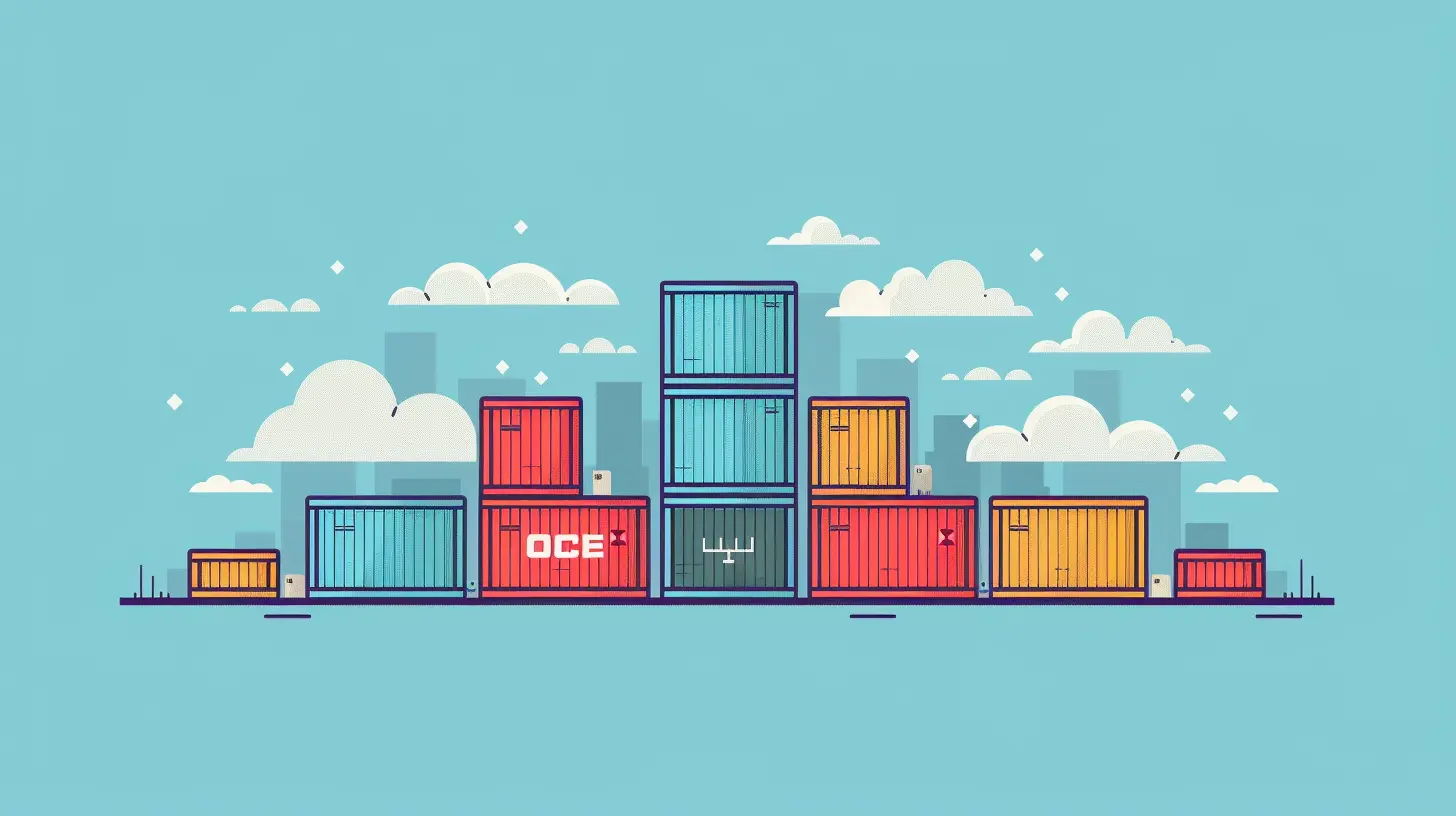
? Why Bother with Docker?
Let’s pause for a moment. Why should you even care?Here's what might be haunting your developer dreams:
- "Works on my machine" errors (ugh)
- Configuration hell
- Dependency version conflicts
- Team members wasting hours setting up the same environment
Docker wipes all that clean. It gives you:
- Consistent environments across dev, test, and production
- Faster onboarding for new devs
- Simplified dependency management
- Easy-to-replicate environments
Kind of a no-brainer, right?
? Core Concepts: What You Need to Know First
Before we dive into the how-to, let’s get cozy with a few Docker terms. Don’t worry, no buzzword bingo — just the essentials.? Docker Image
An image is like a blueprint. It’s a snapshot of your application environment — including the OS, code, dependencies, and configs.? Docker Container
A container is a running instance of an image. Think of it as your app actually living and breathing in its own little bubble.? Dockerfile
This is a recipe that tells Docker how to build your image. It’s written in a simple syntax, and trust me, once you get the hang of it, it feels almost poetic.? Docker Compose
Got multiple services that need to work together (like a Node.js app + a database)? Docker Compose lets you define and run multi-container apps with just one YAML file.
?️ Setting Up a Dockerized Development Environment
Let's get our hands dirty. We’ll create a simple development environment using Docker. For demo purposes, we’ll use a Node.js & MongoDB setup. You can easily swap this out for your stack of choice (Python, Ruby, PHP, you name it).? Step 1: Install Docker
First things first, you need Docker installed.- Go to https://www.docker.com/products/docker-desktop
- Download and install Docker Desktop for your OS (Windows/Mac/Linux)
- Once it’s installed, run this command to check:
bash
docker --version
If it gives you a version number, you’re golden.
? Step 2: Create Your Project Structure
Let’s set up some folders.bash
mkdir my-docker-app
cd my-docker-app
mkdir backend
touch backend/app.js
touch backend/package.json
In `app.js`, paste this:
javascript
const express = require('express');
const app = express();
const port = 3000;app.get('/', (req, res) => res.send('Hello from Docker!'));
app.listen(port, () => console.log(`App listening on port ${port}!`));
In `package.json`, paste this:
json
{
  "name": "docker-demo",
  "version": "1.0.0",
  "main": "app.js",
  "scripts": {
    "start": "node app.js"
  },
  "dependencies": {
    "express": "^4.17.1"
  }
}
? Step 3: Write Your Dockerfile
In the `backend` folder, create a `Dockerfile`:dockerfile
Use Node.js image
FROM node:14
Set working directory
WORKDIR /appCopy package files
COPY package*.json ./
Install dependencies
RUN npm installCopy source files
COPY . .
Expose the port
EXPOSE 3000Run the app
CMD ["npm", "start"]
Let’s break it down:
- You’re starting from a base Node.js image
- Setting up a working dir
- Installing dependencies
- Copying your app files
- Telling Docker what to run on container start
Simple, right?
? Step 4: Build and Run the Container
Back in the root of your project, run:bash
docker build -t my-docker-app ./backend
Now run the container:
bash
docker run -p 3000:3000 my-docker-app
Open your browser, go to `http://localhost:3000` — boom! Dockerized app, up and running.
? Making It Smoother with Docker Compose
But wait — this is just one service. Real-world apps often need a database, maybe a cache, and more. Managing multiple containers can get hairy. Enter: Docker Compose.Create a `docker-compose.yml` in your project root:
yaml
version: '3'
services:
  app:
    build: ./backend
    ports:
      - "3000:3000"
    volumes:
      - ./backend:/app
    depends_on:
      - mongo
  mongo:
    image: mongo
    ports:
      - "27017:27017"
Then, from your root directory:
bash
docker-compose up
Now, both your app and your MongoDB service are up, connected, and humming along in harmony.
You didn’t write a single shell script or hunt down version compatibility issues. Docker handled it all.
? Real-World Use Cases of Docker in Development
Docker isn’t just trendy — it’s battle-tested in the wild:1. Team Collaboration Made Easy
New dev joins your team? Just share the repo. They run `docker-compose up`, and boom — identical environment. Zero “env mismatch” headaches.2. CI/CD Integration
Run your tests in containers in a clean slate each time. Tools like Jenkins, GitHub Actions, TravisCI — all play great with Docker.3. Microservices Nirvana
Each microservice can live in its own container, talk to other services, and even scale independently.⚠️ Gotchas and Best Practices
It's not all unicorns and rainbows. Here are a few things to keep in mind:- Don’t store secrets in Dockerfiles. Use environment variables or secret managers.
- Keep images small — use slim versions (like `node:14-slim`) and multi-stage builds if needed.
- Clean up often — `docker system prune` is your friend.
- Use `.dockerignore` to avoid copying unnecessary files into the image.
? Wrapping It All Up
And there you have it — you’ve just scratched the surface of Docker in development, but you've also armed yourself with enough to hit the ground running.Docker isn't reserved for DevOps gurus or enterprise-scale apps. It's for you — the coder, the tinkerer, the dreamer — who wants to write code that just works, regardless of where it runs.
So next time someone says, “It works on my machine,” you can smile, tip your (Docker) cap, and say, “Yeah, it works on mine too — every time.”
? Bonus: Helpful Docker Commands Cheatsheet
Here's a quick reference for your Docker journey:bash
docker build -t app-name .
docker run -p local-port:container-port app-name
docker images // List images
docker ps // Running containers
docker stop container-id
docker rm container-id
docker-compose up
docker-compose down
Bookmark this. You'll thank yourself later.
all images in this post were generated using AI tools
Category:
ProgrammingAuthor:

Adeline Taylor
Discussion
rate this article
1 comments
Daphne Rodriguez
Docker sounds intriguing for simplifying development. I'm eager to explore how it can enhance my workflow and collaboration. Any tips?
July 3, 2026 at 3:49 AM
Adeline Taylor
Start by setting up a basic Dockerfile for your project. Use Docker Compose to manage multi-container applications. Don't forget to check out community images on Docker Hub for common services. Experiment and iterate to find what fits best for your workflow. Good luck!