The Best Digital Assistants for Managing Your Smart Office
7 January 2026
Managing a smart office shouldn’t feel like herding cats. With piles of tasks, meeting reminders, scheduling conflicts, and a growing number of smart devices around, having an extra set of digital hands is a game changer. That’s where digital assistants step in — your AI-powered sidekicks that help you run your workday smoother than a fresh jar of peanut butter.
So, whether you're a small business owner juggling Zoom calls and automated lighting or part of a large corporation fine-tuning your hybrid workspace, the right digital assistant can turn chaos into calm. In this guide, we’ll dive deep into the best digital assistants for managing your smart office. We'll go beyond just naming them — we’ll unpack what they do, how they stand out, and why they might be perfect for your workspace.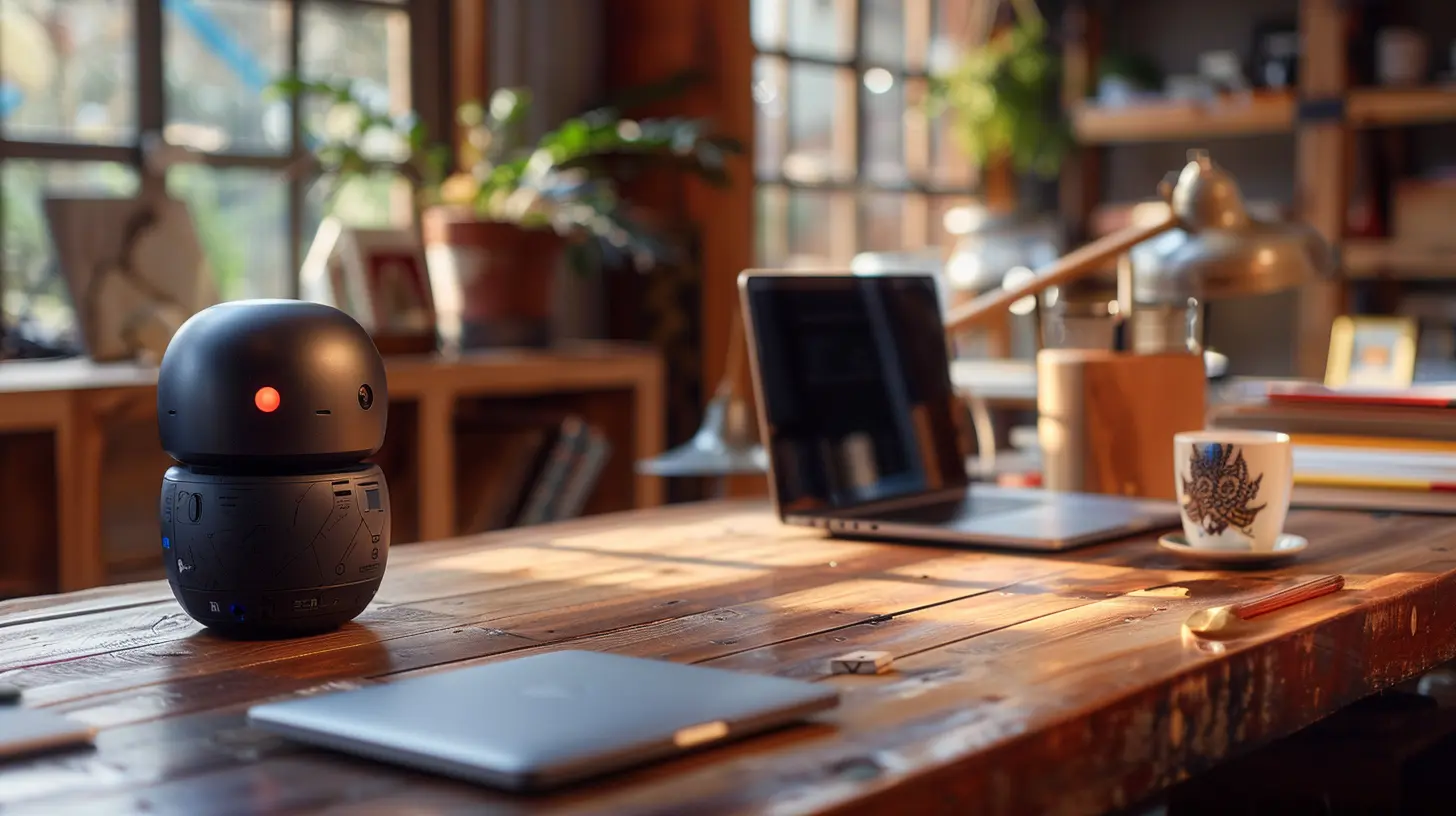
What Exactly Is a Digital Assistant?
Let’s start with the basics. A digital assistant is a software-based service powered by artificial intelligence (AI) that helps you perform tasks or services based on voice commands or text input. Kind of like having a personal butler who never sleeps and knows how to connect your calendar to your coffee machine.Digital assistants can schedule meetings, control smart devices, set reminders, send messages, transcribe calls, manage to-do lists, and even keep track of weather and traffic updates. In the context of a smart office, they help integrate all those brilliant gadgets — from smart lights and thermostats to projectors and printers — and allow central, hands-free control.
Why Your Smart Office Needs a Digital Assistant
You might be wondering, "Can't I just operate my smart devices through their apps?"Sure, you can. But it’s like choosing to walk when you’ve got a bicycle sitting there waiting for you.
Here’s why digital assistants are essential in smart offices:
- Efficiency: They automate repetitive tasks.
- Hands-Free Operation: Control systems with voice — great during multitasking or meetings.
- Centralized Control: Integrate all your smart gadgets into one ecosystem.
- Time-Saving: Quick scheduling, information retrieval, and communication.
- Productivity Booster: Less time fiddling with settings, more time doing what really matters.
The right assistant aligns with your workflow and helps your team focus instead of constantly troubleshooting tech.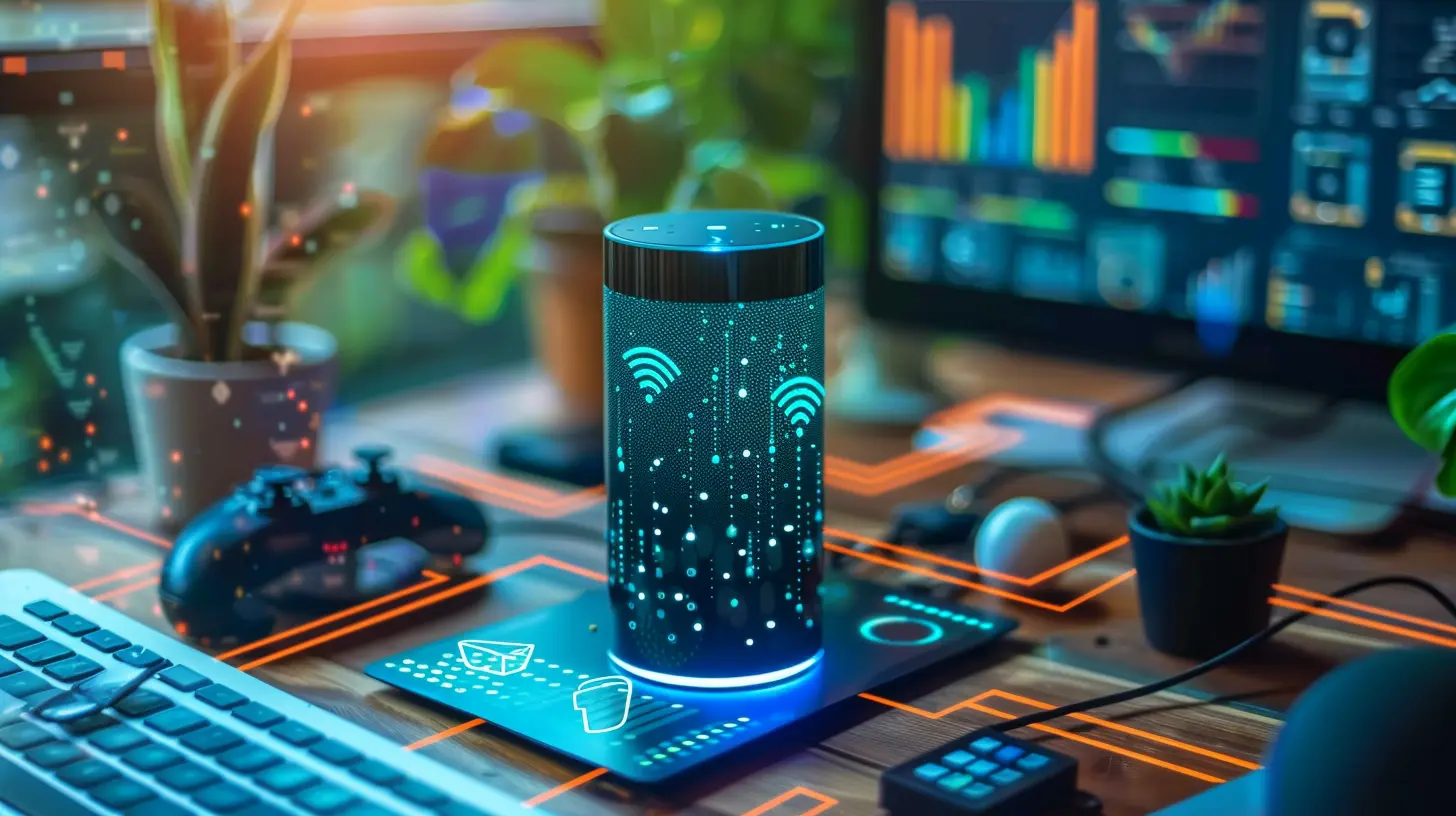
Top 5 Best Digital Assistants for Managing Your Smart Office
Now, onto the good stuff. There are a few big names in the digital assistant world, and while some are household staples, others are lesser-known gems tailor-made for workspaces.Here are the top contenders that can truly elevate your smart office game:
1. Google Assistant: The All-Knowing Brainiac
Google Assistant isn't just for asking the weather or playing your favorite playlist. In a smart office environment, this assistant becomes a powerful productivity hub.Strengths:
- Deep Integration with Google Workspace: If you're already using Gmail, Google Calendar, Google Meet, or Drive, this assistant becomes your second brain.
- Voice-Activated Commands: Easily book meetings, send emails, take notes using Google Keep, or check meeting schedules.
- Seamless Smart Device Control: Works like a charm with third-party smart office devices — smart lights, thermostats, printers, you name it.
- Broadcasting Feature: Need to make a quick announcement to the whole office? Send a voice message via smart speakers across rooms.
Best For: Teams deeply integrated into Google Workspace or those who rely heavily on cloud productivity tools.
Pro Tip: Pair Google Assistant with Nest Hub Max in conference rooms for a full-on smart meeting assistant experience.
2. Amazon Alexa for Business: The Versatile Powerhouse
Alexa has come a long way from just being a home assistant. With Alexa for Business, Amazon aims straight at the heart of professional spaces.Strengths:
- Meeting Room Integration: Control AV equipment, dim lights, adjust thermostats, or start conference calls with voice commands.
- Shared Devices Setup: Deploy Echo devices across the office as shared tools, making them accessible for anyone to use.
- Calendar Management: Connect calendars and simply ask Alexa for your daily schedule or upcoming meetings.
- Custom Skills: Build your own Alexa Skills to automate unique workflows or integrate with internal systems.
Best For: Offices looking for custom functionality or already using Amazon Web Services (AWS) tools.
Fun Feature: You can configure Alexa to answer FAQs or provide office-specific info like Wi-Fi passwords or cafeteria hours.
3. Microsoft Cortana (Integrated with Microsoft 365): The Office Wizard
While Microsoft scaled back its Cortana consumer efforts, Cortana is alive and well inside Windows and Microsoft 365 — which is fantastic news if you're a Microsoft-powered office.Strengths:
- Outlook and Teams Integration: Cortana can join Microsoft Teams meetings for you or manage your Outlook calendar.
- Task Management: Voice commands can help you create tasks or reminders in Microsoft To Do.
- Email Summaries: Cortana provides daily Briefing Emails — it’s like a proactive assistant reminding you what’s important today.
- Windows Native: If you’re using Windows 10/11, Cortana is baked right in and works seamlessly.
Best For: Offices that are knee-deep in the Microsoft ecosystem and want smooth automation across Teams, Outlook, and OneDrive.
Did You Know? Cortana can read your emails out loud and help you dictate replies. Talk about hands-free productivity!
4. Apple Siri: The Smooth Operator (In Apple-Centric Offices)
For teams using Macs, iPhones, and iPads, Siri offers a cohesive experience across Apple devices. While not as open-ended as Alexa or Google Assistant, Siri’s strength lies in its privacy and Apple ecosystem integration.Strengths:
- iCloud and Calendar Sync: Manage appointments, notes, reminders, and more seamlessly across Apple devices.
- Handoff and Continuity: Start a task on one device and continue on another with Siri keeping context.
- Voice Dictation: Create emails, notes, or even whole documents with impressive accuracy.
- Shortcuts App: Allows automation of sequences (e.g., “Start workday” could turn on lights, set thermostat, and open your schedule).
Best For: Offices where everyone’s rocking an iPhone, MacBook, and lives in the Apple ecosystem.
Bonus: Siri respects user privacy better than most, which is crucial if you’re handling sensitive business data.
5. IBM Watson Assistant: The AI Custom Genius
Unlike the others, Watson Assistant is more of a build-your-own digital assistant. It’s not for simple control of your lights or music — this one’s made for serious enterprise-level automation.Strengths:
- AI-Powered Chatbot Capabilities: Watson doesn’t just answer — it understands and engages.
- Customizable Workflows: You can teach Watson to handle customer queries, internal IT support, HR questions, even booking meeting rooms.
- Deep NLP (Natural Language Processing): Interprets user intent better than many competitors.
- Omnichannel Support: Embed it on websites, intranet portals, or integrate into Slack and Microsoft Teams.
Best For: Medium to large enterprises with complex internal systems that need custom automation or customer support.
Heads Up: Watson Assistant has a steeper learning curve and may require some development resources to get going.
How to Choose the Right Digital Assistant for Your Smart Office
Let’s be honest — no one wants to waste time integrating a system only to find it doesn’t fit your office vibe. So, before you commit, consider these things:- What’s Your Tech Stack? If your team runs on Google, pick Google Assistant. Using Outlook, go with Cortana.
- Is Privacy a Priority? Siri and Watson put more emphasis on data privacy.
- Do You Need Customization? Alexa and Watson offer deep customization options.
- Smart Device Compatibility? Make sure your assistant easily connects with your existing smart gadgets.
Think of it like dating — compatibility matters. You want an assistant that understands your quirks, routines, and business rhythm.
Tips to Get the Most Out of Your Digital Assistant
So, you’ve decided on a digital assistant. Great! Now what?Here are some tips to supercharge your smart office experience:
1. Train Your Team: Make sure everyone knows how to use the assistant. Maybe even create a quick cheat sheet.
2. Automate Routines: Set daily routines like “Start work” or “End the day” to automatically adjust lights, play music, or summarize meetings.
3. Secure Your Setup: Use device-level permissions and admin controls to avoid unwanted access.
4. Integrate with Project Management Tools: Some assistants can hook into Trello, Asana, Slack or Jira.
5. Regularly Update Skills/Apps: Keep the assistant fresh and capable by installing updates and adding useful features.
The Future of Smart Offices with Digital Assistants
Digital assistants are no longer just a cool feature — they’re becoming the central nervous system of modern offices. As AI gets better at understanding context, tone, and complex requests, digital assistants will evolve from being mere helpers to full-blown collaborators.Imagine walking into your office, and your assistant has already adjusted the lighting, booted your computer, briefed you on the day's agenda, reminded you of a client call, and prepped the documents you need. We're not far from that reality.
Final Thoughts
In a world where productivity is currency, the right digital assistant can be the silent hero of your smart office. Whether you're just dipping your toes into automation or already have a sophisticated setup, there's a solution out there that fits like a glove.Let your digital assistant handle the routine so you can focus on the remarkable.
all images in this post were generated using AI tools
Category:
Digital AssistantsAuthor:

Adeline Taylor
Discussion
rate this article
2 comments
Bennett Acevedo
Great insights! Embracing digital assistants can truly enhance productivity in a smart office. Excited to see how these tools can streamline our workflows and improve efficiency!
February 5, 2026 at 11:59 AM
Adeline Taylor
Thank you! I'm glad you found the insights helpful. Exciting times ahead for smart offices with digital assistants!
Lyra Allen
Great insights on digital assistants! It's impressive how these tools streamline office tasks and enhance productivity. The comparison of features is particularly helpful for choosing the right assistant for specific needs. Excited to see how AI continues to evolve in smart office environments!
January 8, 2026 at 3:48 AM
Adeline Taylor
Thank you for your feedback! I'm glad you found the insights helpful, and I share your excitement about the future of AI in smart offices!